Function Management
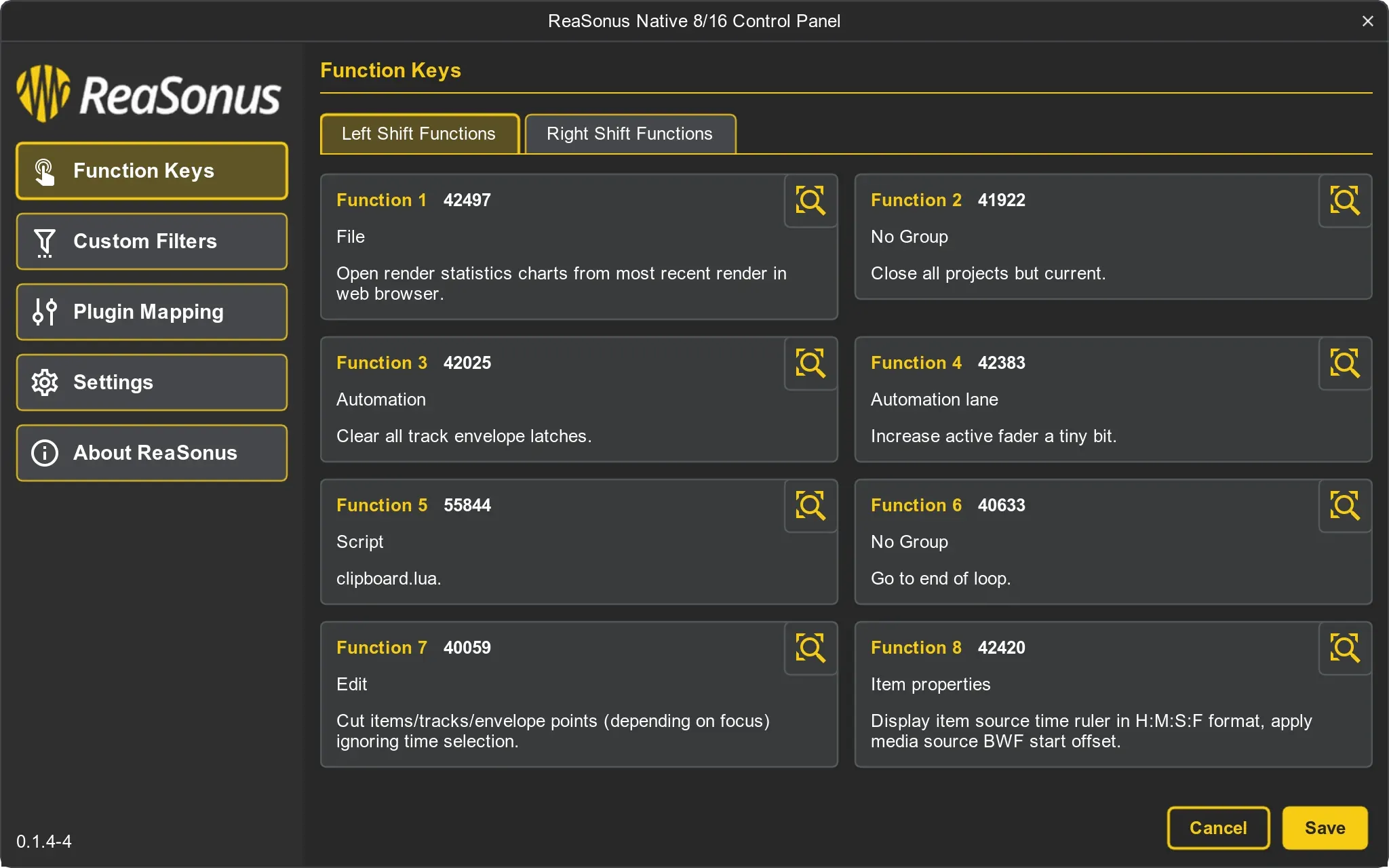
There are multiple places in ReaSonus Native where you can assign custom REAPER actions to buttons on the FaderPort. Currently you can assign custom actions to all the function keys in the Session Navigator and for the foot switch.
Function Keys
Within ReaSonus Native it is fairly simple to manage the actions attached to the function buttons. To open the window click the [Left Shift] + [Macro]-button, or open the ReaSonus Native Control Panel and select the Function Keys tab.
There are 2 tabs with 8 fields for the function keys on the FaderPort 8/16 and there are 4 functions keys for the FaderPort V2.
More on how to engage the Function Keys can be found here: Session Navigation (FaderPort 8/16) or Session Navigation (FaderPort V2)
Each function block shows the name and info for the corresponding action, together with the action id.
There are 2 buttons per Action block available:
- The magnifying glass: Opens the action list. You can select the action you want and then press the select button.
- The refresh button: This will clear the selected action.
Click the Save button to save your changes.
Foot Switch
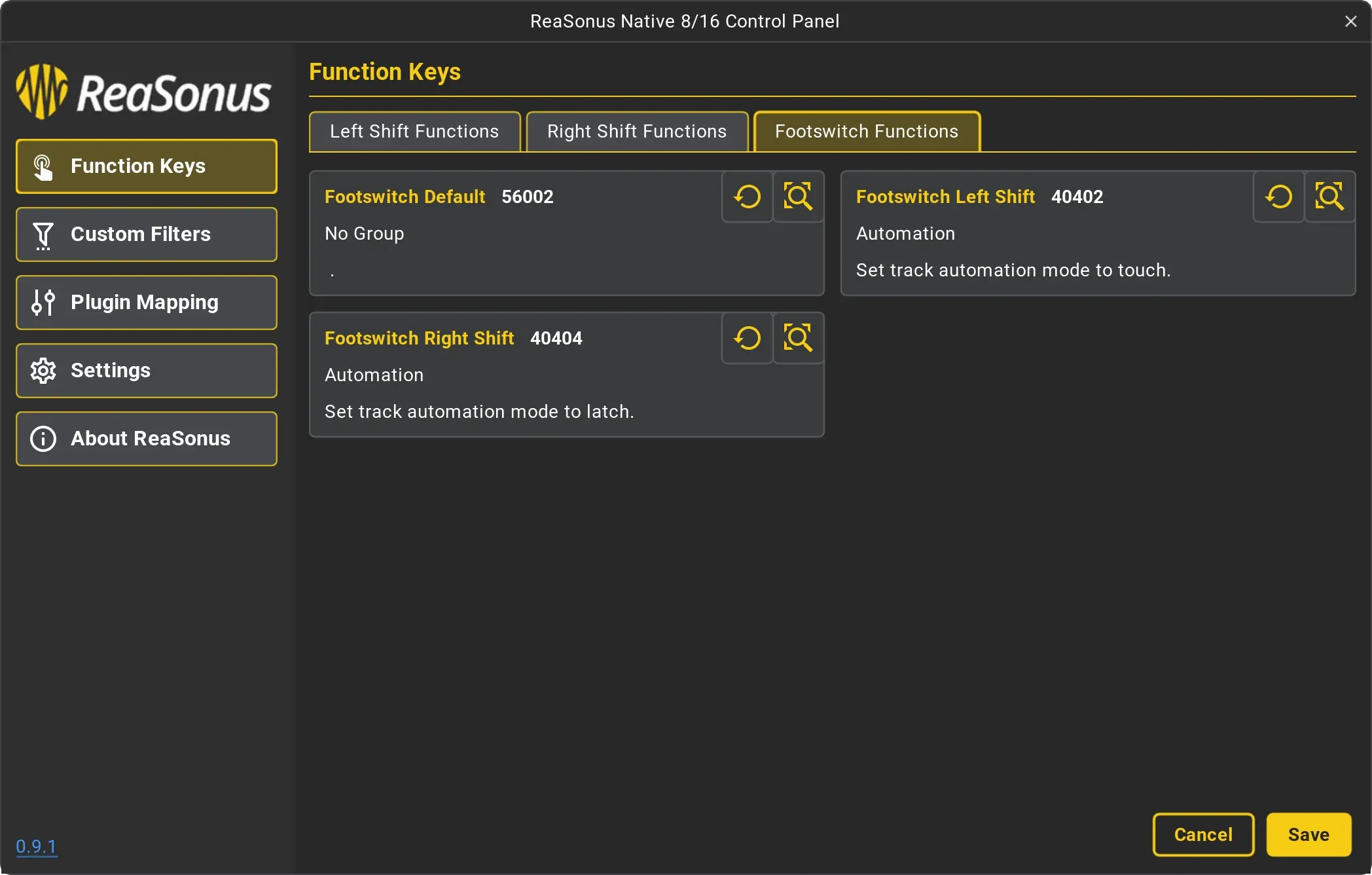
The third tab in the function management page is for the foot switch. There are 3 functions to assign here:
- Default foot switch,
- [Left Shift] + foot switch
- [Right Shift] + foot switch
Each function block shows the name and info for the corresponding action, together with the action id.
There are 2 buttons per Action block available:
- The magnifying glass: Opens the action list. You can select the action you want and then press the select button.
- The refresh button: This will clear the selected action.
Click the Save button to save your changes.