
Settings FaderPort 8 & 16
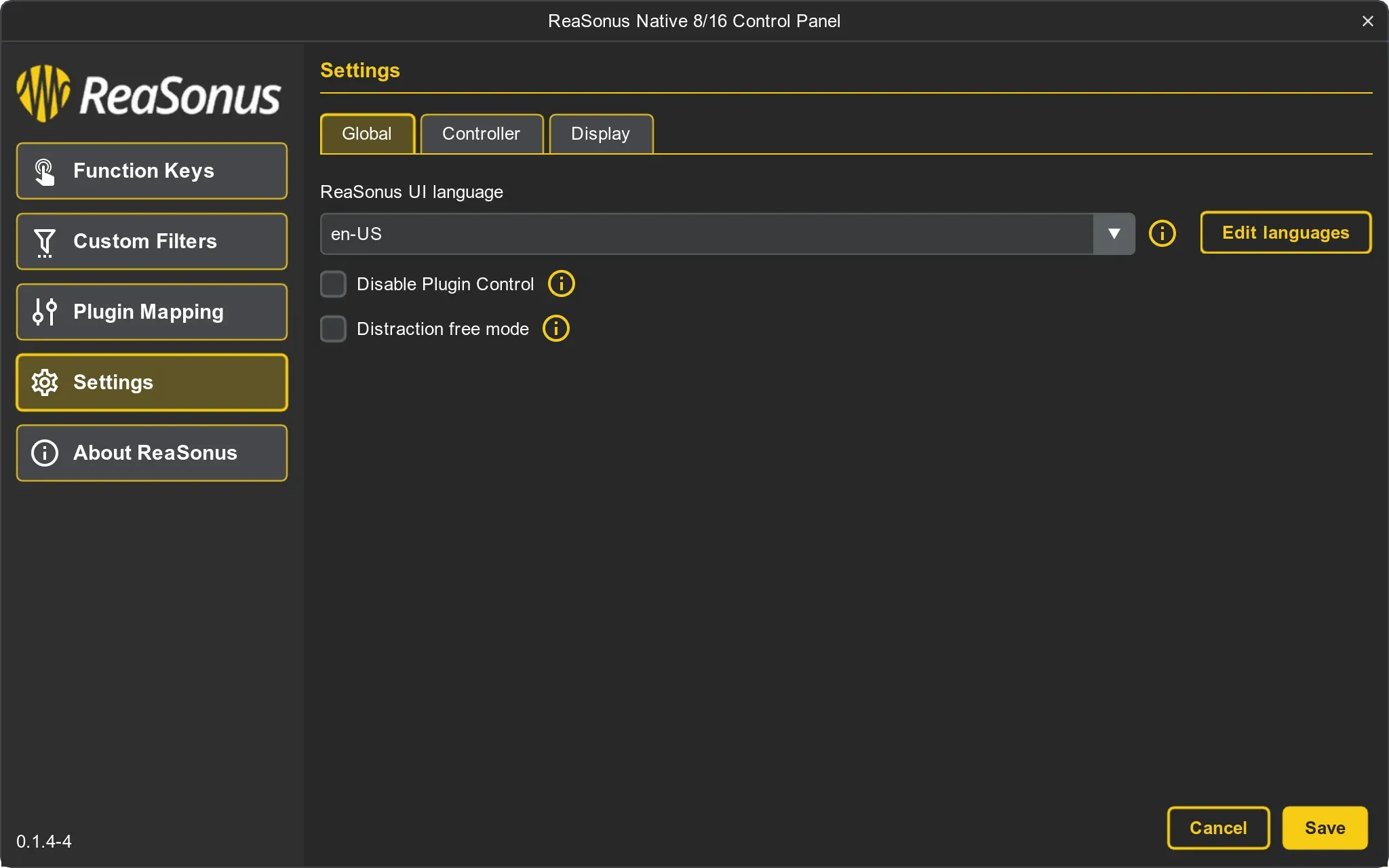
For the FaderPort 8 & 16 ReaSonus Native has quite some options. These are split into a couple of tabs:
- ReaSonus UI Language: The language for the ReaSonus Control panel.
- Distraction free mode: Remove all that can be distracting like blinking buttons, some buttons `on` state.
- Color Palette: Create your own color palette to use with the plugin mapping (more to come)
- Enable master fader mode: When selected en pressing the master button will enable master fader mode. This makes the last track of the FaderPort control the master track.
- Swap Shift buttons: This swaps the left and right Shift button.
- Fader Reset: Left shift and fader touch: When eneabled, you can use the [Left Shift] button to reset the fader value while touching teh fader.
- Mute/Solo Momentary: When set, it will make the Solo and Mute buttons momentary. The timeout for being momentary is 500 milli seconds. In short: If you press the solo button longer then 500ms and release it, it will instant unsolo again.
- Enable write action for Latch Preview mode automation: When enabled and the automation mode is in Latch Preview, the Ltatch review button will trigger the write action selected.
- Write action for Latch Preview mode automation: Action triggered when engaging the Latch Preview button when in Latch Preview automation mode.
- Instant apply filter in multi select: When enabled the custom filters in multi select mode gets applied instant
- Mute the master track on Fwd and Rwd: When fast forwarding or rewinding the playhead, the master track gets muted
- Disable Plugin Control: If you use another controller for controlling the plugins, you can select this. The plugins mode is still active and you are still able to open the plugin window. From that point, the ReaSonus FaderPort will not do anything anymore for the plugins.
- Untouch last touched param after learn: When selected the last touched param will be set to untouched after parameter learn.
- Step size when scrolling through plugin parameters: Set the step size for scrolling through the plugin parameters when in plugin control mode.
- Clear input on close button in param select popup: When engaged and clicking the close button in the parameter select popup it will clear the input field.
- Default color mode: Default color mode for the plugin mapping.
- No Color: The select button will always be dimmed white
- Show Color: When a select param is available, it will be bright, otherwise the selected color is dimmed
- Always bright and always dimmed do what they say.
- Overwrite Time Code: Overwrites the time code selected in REAPER.
- Time Code: Select the time code type you want to overwrite REAPERs time code with.
- Track color brightness: Set the track color brightness for the unselected state. This will make the color in the unselected mode more visible.
Track mode display
You can configure the track display to your own needs as not every workflow is the same. For every line available there is a tab with the settings for that line
- Track mode display: Select the display mode you would like to use
- Line Value: The value to display for this line
- Alignment: Text alignment for this line
- Line Invert: Whether the line colors should be inverted
- Value Bar: The value bar mode
- Value: The value to use for the value bar
Settings FaderPort V2
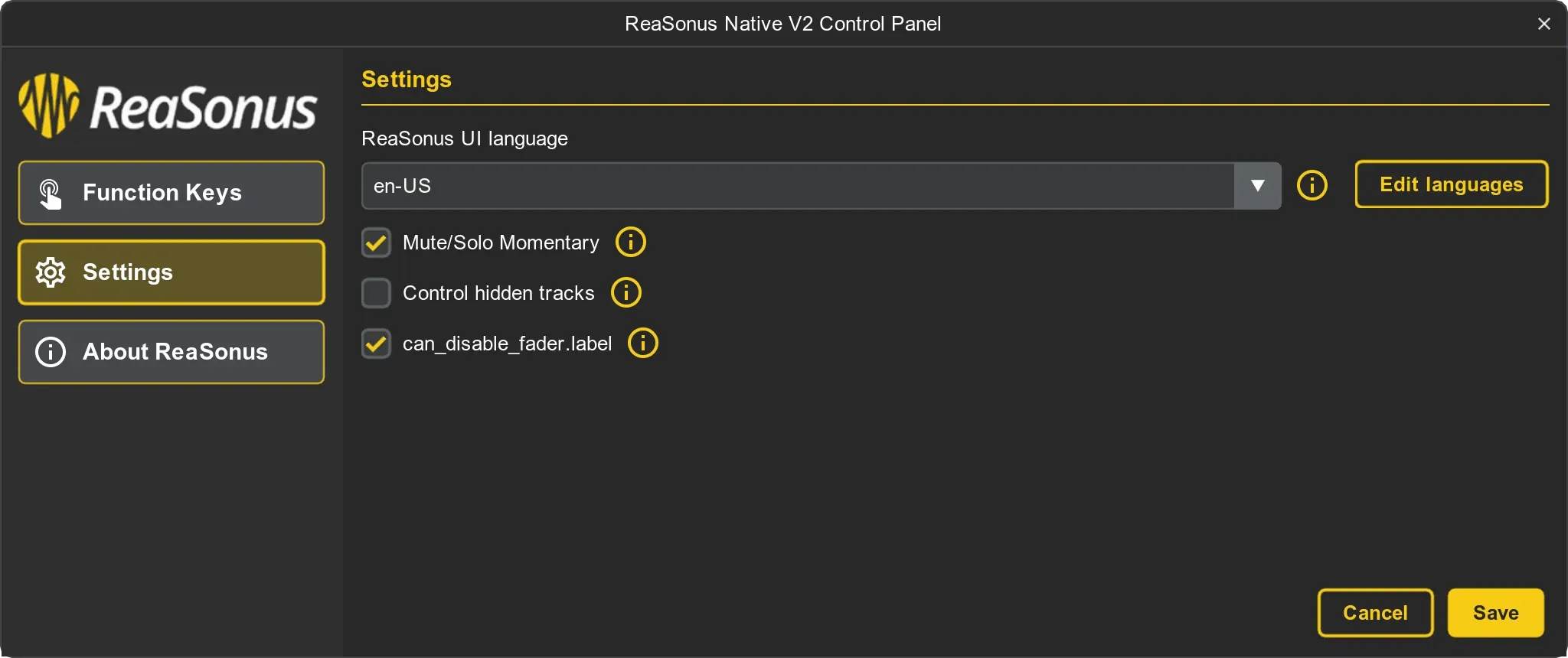
For the FaderPort v2 ReaSonus Native has the following 2 settings
- ReaSonus UI Language: The language for the ReaSonus Control panel.
- Mute/Solo momentary: When set, it will make the Solo and Mute buttons momentary. The timeout for being momentary is 500 milli seconds. In short: If you press the solo button longer then 500ms and release it, it will instant unsolo again
- Control hidden MCP tracks: By default ReaSonus Native will step through the visible tracks. With this option also the hidden files in the MCP will be selectable
- Enable option to disable fader move when selecting tracks: This option makes it possible to use [Shift] + [Channel] to disable fader moves when selecting tracks in REAPER
- Enable endless track scrolling: When on the last track and clicking the next button, go to the first track. Same for previous, but then the other way around.
- Enable write action for Latch Preview mode automation: Enable the posibilty to trigger a write action when engaging the Latch Preview (Pan) button when in Latch Preview mode
- Write action for Latch Preview mode automation: Action triggered when engaging the Latch Preview button when in Latch Preview automation mode